How to set appearance or color scheme for different vscode instances?

Viewed 92

I'm using Visual Studio Code for my project. Sometimes I need to work on different git branches simultaneously, therefore I'll have multiple project copies in different folders with different branches, and open VS Code in each folder.

However, it bothers me that all VS Code instances look the same, therefore I can't distinguish which workspace I'm switching to immediately.

Is it possible to save IDE appearance or color scheme in VSCode workspace setting?

Thanks.

3 Answers

With the extension When File you can color parts of the window based on the file path or languageId

A sample from the README

  "whenFile.change": {
    "byLanguageId": {
      "python": {
        "workbenchColor": {
          "editor.background": "#ddddff"
        }
      },
      "html": {
        "workbenchColor": {
          "editor.background": "#ddffdd"
        }
      }
    },
    "/projects/server/": {
      "workbenchColor": {
        "activityBar.background": "#509050"
      }
    },
    "/projects/client/": {
      "workbenchColor": {
        "activityBar.background": "#905080"
      }
    },
    "/.*\\.log$": {
      "workbenchColor": {
        "activityBar.background": "#acad60"
      }
    }
  }

You can have workspace settings. Open them by using the Preferences: Open Workspace Settings (JSON) command:

open workspace settings command

Customize your theme there, e.g. change your status bar colour to red:

{
    "workbench.colorCustomizations": {
        "statusBar.background": "#9f2323",
    }
}

enter image description here

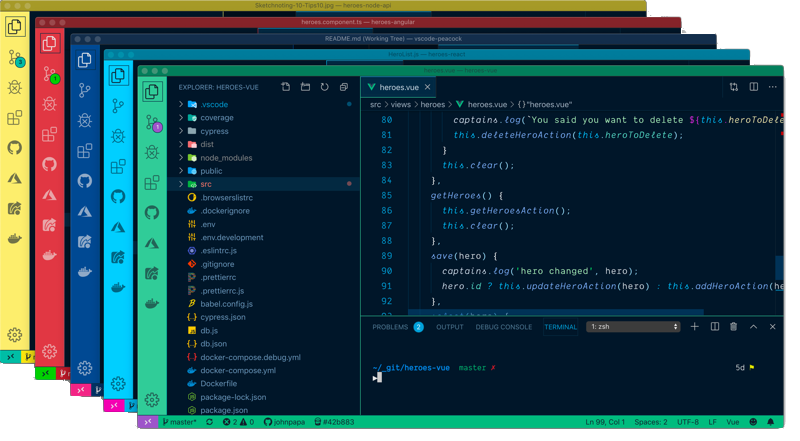
The simplest solution might be using the Peacock extension. It changes the color of your workspace (including titlebar, activitiy bar and status bar) using a single command:

Peacock: Change to a favorite color.

This is limited to a pre-defined color set, though.

peacock extension

Related