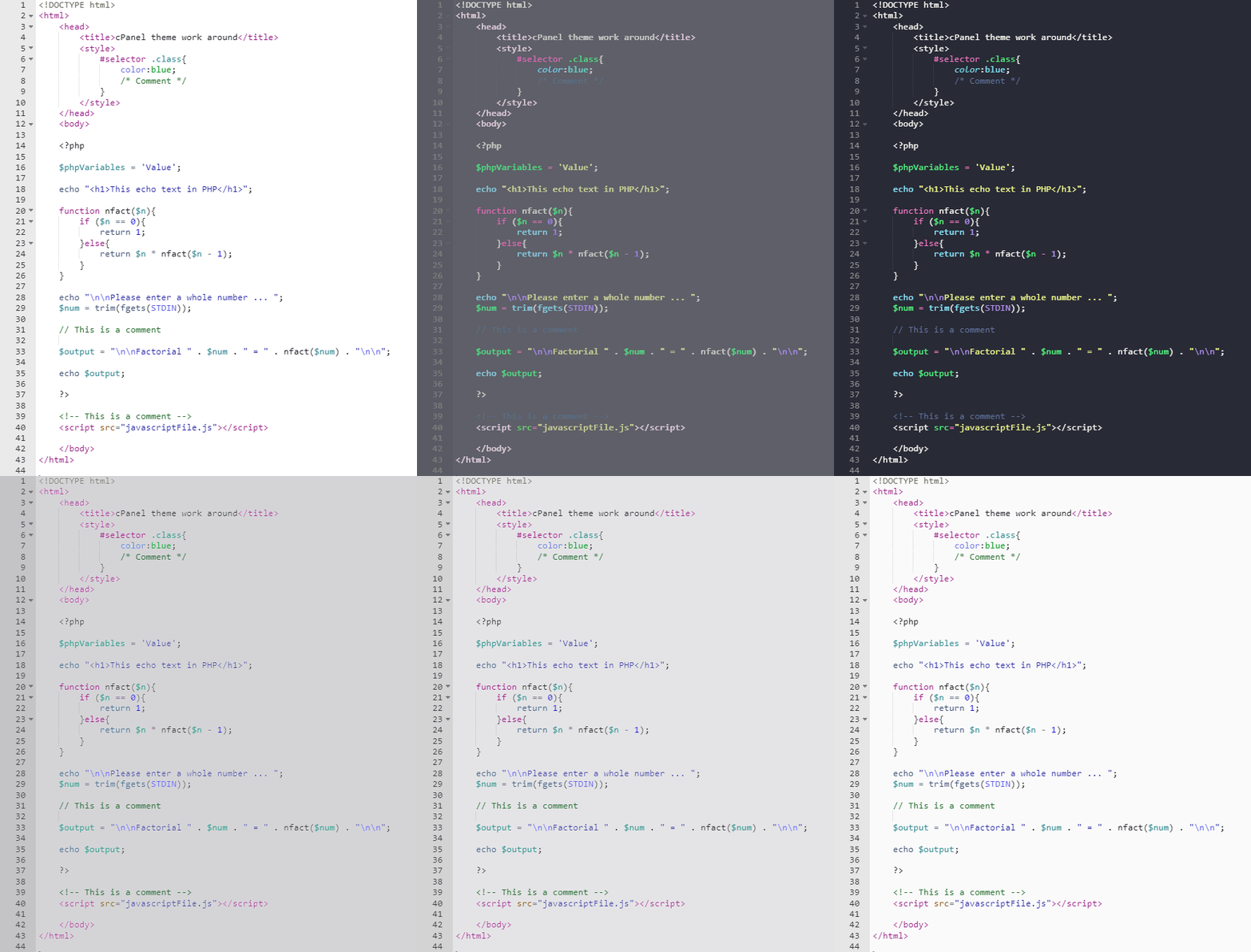
How to change CPanel Code editor theme for Permanent

Viewed 53

I m trying to change my CPanel code editor theme to Dark mode. Which I was able to by

  1. keys "Ctrl + ," to open the setting
  2. Change the "Theme" section over there to Dark or any other.

but it is kinda temporary. When I close the editor and open it again I have to do it again.

Is there any way to make the selected Default Theme..?

Any help is greatly appreciated.

1 Answers

I had no idea about the existence of the "Ace settings menu" CTRL + , and its themes until I saw your post, so I did some research. Apparently the cpanel developers never cared that the "Cloud9 Editor" IDE didn't work properly appearance-wise.

There is a way to inject your own CSS via a chrome/ms edge extension and leave it as default.

  1. Install ABC JS-CSS Injector

  2. Copy this custom dark-theme "dracula" based:

#ace-chrome
.ace-chrome .ace_content .ace_layer .ace_print-margin-layer .ace_print-margin {visibility: hidden; left: 0px;}
.ace-chrome .print-margin {visibility: hidden;}
.ace-chrome .ace_gutter {background: #282a36;color: rgb(144,145,148)}
.ace-chrome .ace_print-margin {width: 0px;background: #44475a}
.ace-chrome {background-color: #282a36;color: #f8f8f2}
.ace-chrome .ace_cursor {color: #f8f8f0}
.ace-chrome .ace_marker-layer .ace_selection {background: #44475a}
.ace-chrome.ace_multiselect .ace_selection.ace_start {box-shadow: 0 0 3px 0px #282a36;border-radius: 2px}
.ace-chrome .ace_marker-layer .ace_step {background: rgb(198, 219, 174)}
.ace-chrome .ace_marker-layer .ace_bracket {margin: -1px 0 0 -1px;border: 1px solid #a29709}
.ace-chrome .ace_marker-layer .ace_active-line {background: #474a5d}
.ace-chrome .ace_gutter-active-line {background-color: #44475a}
.ace-chrome .ace_marker-layer .ace_selected-word {box-shadow: 0px 0px 0px 1px #a29709;border-radius: 3px;}
.ace-chrome .ace_fold {background-color: #50fa7b;border-color: #f8f8f2}
.ace-chrome .ace_keyword {color: #ff79c6}
.ace-chrome .ace_constant.ace_language {color: #bd93f9}
.ace-chrome .ace_constant.ace_numeric {color: #bd93f9}
.ace-chrome .ace_constant.ace_character {color: #bd93f9}
.ace-chrome .ace_constant.ace_character.ace_escape {color: #ff79c6}
.ace-chrome .ace_constant.ace_other {color: #bd93f9}
.ace-chrome .ace_support.ace_function {color: #8be9fd}
.ace-chrome .ace_support.ace_constant {color: #6be5fd}
.ace-chrome .ace_support.ace_class {font-style: italic;color: #66d9ef}
.ace-chrome .ace_support.ace_type {font-style: italic;color: #66d9ef}
.ace-chrome .ace_storage {color: #ff79c6}
.ace-chrome .ace_storage.ace_type {font-style: italic;color: #8be9fd}
.ace-chrome .ace_invalid {color: #F8F8F0;background-color: #ff79c6}
.ace-chrome .ace_invalid.ace_deprecated {color: #F8F8F0;background-color: #bd93f9}
.ace-chrome .ace_string {color: #f1fa8c}
.ace-chrome .ace_comment {color: #6272a4}
.ace-chrome .ace_variable {color: #50fa7b}
.ace-chrome .ace_variable.ace_parameter {font-style: italic;color: #ffb86c}
.ace-chrome .ace_entity.ace_other.ace_attribute-name {color: #50fa7b}
.ace-chrome .ace_entity.ace_name.ace_function {color: #50fa9c}
.ace-chrome .ace_entity.ace_name.ace_tag {color: #ff79c6}
.ace-chrome .ace_storage,
.ace-chrome .ace_keyword,
.ace-chrome .ace_meta.ace_tag{color: #eb0081}
.ace-chrome .ace_xml-pe {color: rgb(142, 142, 142);}
.ace-chrome .ace_invisible {color: #626680;}
.ace-chrome .ace_keyword.ace_operator {color: rgb(216, 58, 255);}
.ace-chrome .ace_indent-guide {background: url(data:image/png;base64,iVBORw0KGgoAAAANSUhEUgAAAAEAAAACCAYAAACZgbYnAAAAEklEQVQImWNgYGBgYHB3d/8PAAOIAdULw8qMAAAAAElFTkSuQmCC) right repeat-y}

  1. Paste the CSS into browser extension: enter image description here

  2. Go to any cPanel editor and happy coding.

(Example): example

You can check another themes here and customize your CSS as you want.

CSS updated on github

Related