
I just installed the new Windows Terminal from Windows stores. I also have installed Ubuntu 18.04 WSL. But I am getting only two types of terminal options in Windows Terminal. How I can get the option of Ubuntu terminal in it. Also, I want cmd to be my default terminal in it rather than PowerShell.
5 Answers
You need to change settings
Click "Settings" in right top corner of above image, the file profile.json file will be opened. Then inside the word "profiles" in profile.json file, add below snippet.
        {
            "guid": "{78e390db-1bff-4533-9d7c-20f53d8bafa1}",
            "name": "WSL",
            "colorscheme": "Campbell",
            "historySize": 9001,
            "snapOnInput": true,
            "cursorColor": "#FFFFFF",
            "cursorShape": "bar",
            "commandline": "wsl ~",
            "fontFace": "Consolas",
            "fontSize": 12,
            "acrylicOpacity": 0.75,
            "useAcrylic": true,
            "closeOnExit": false,
            "padding": "0, 0, 0, 0"
        }
Near the word "schemes" in profile.json file, you need to update below:
"schemes": [
        {
            "name": "Campbell",
            "foreground": "#A7B191",
            "background": "#0C0C0C",
            "colors": [
                "#0C0C0C",
                "#C50F1F",
                "#13A10E",
                "#C19C00",
                "#0037DA",
                "#881798",
                "#3A96DD",
                "#CCCCCC",
                "#767676",
                "#E74856",
                "#16C60C",
                "#F9F1A5",
                "#3B78FF",
                "#B4009E",
                "#61D6D6",
                "#F2F2F2"
            ]
        }
The complete setting file (profile.json) which can be obtained here.
Actually, the WSL here is Ubuntu.
Besides, you can add icons to different types of tabs.
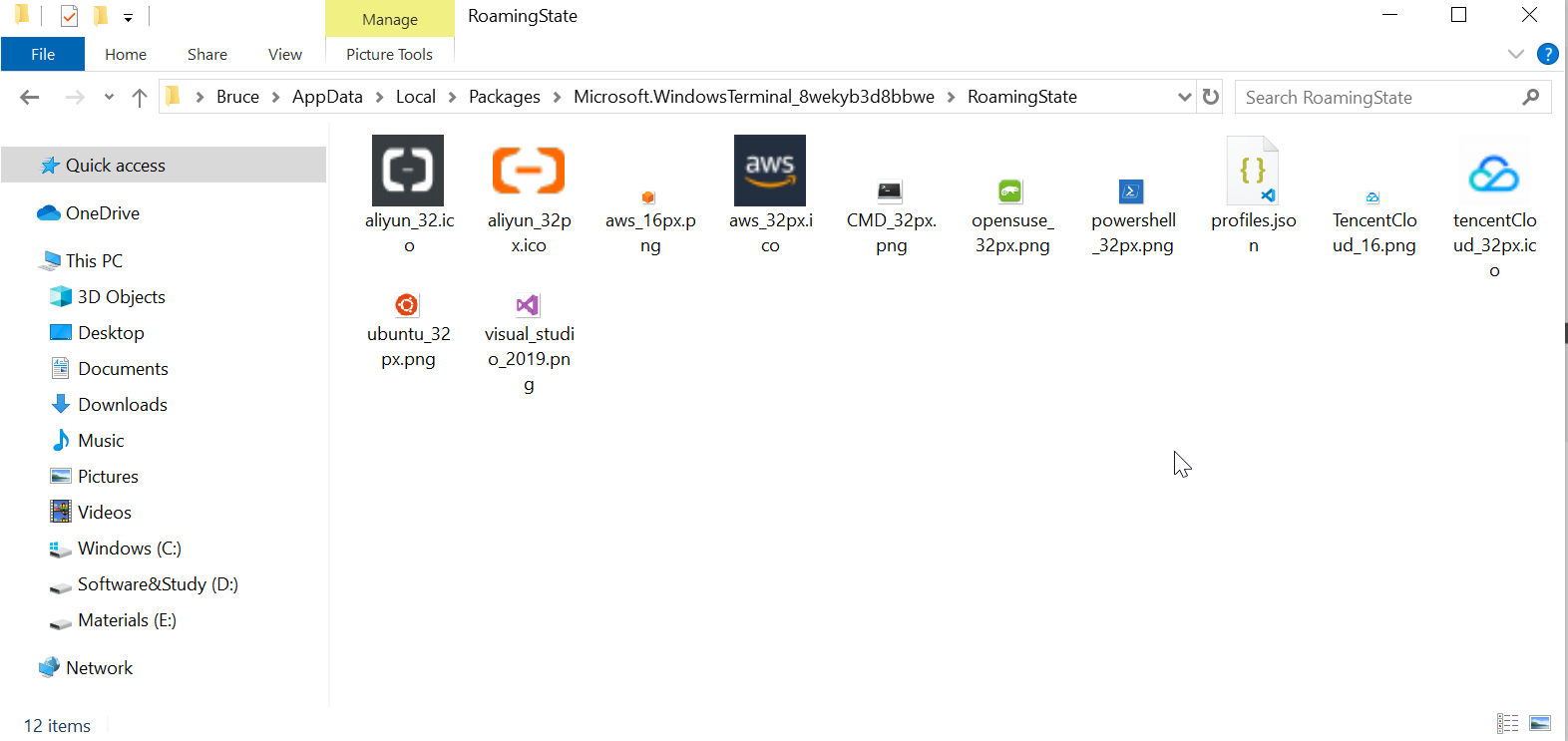
You can add icons for the Ubuntu profile to this folder:
$env:LOCALAPPDATA\Packages\Microsoft.WindowsTerminal_8wekyb3d8bb\RoamingState
I put some 32x32 PNG in this folder, and then in profile.json I can reference the image resource with the path starting with ms-appdata:// .
The icon is available here: Icons
Then replace the contents of the new profile-withIcons.json file below with the previous settings.
profile-withIcons.json
After finishing the contents of the folder is like this:
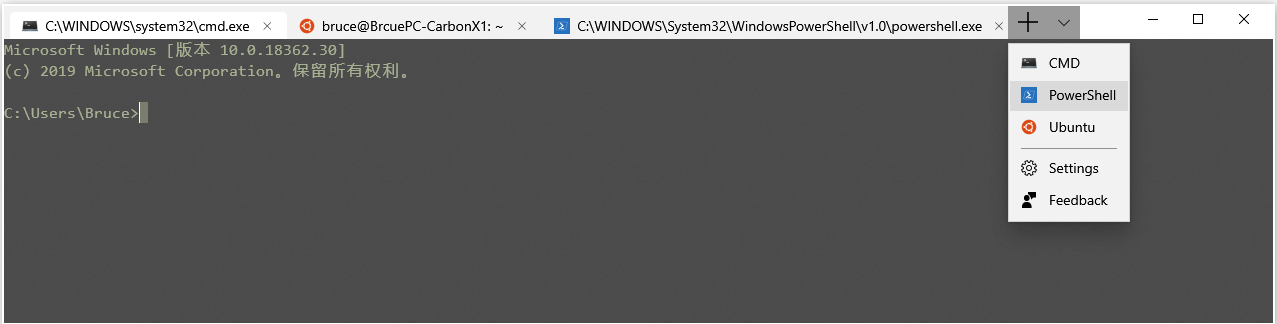
The final result is:
An even easier option: Go to Settings -> Apps -> Apps and features -> find 'Windows Terminal' in the list -> select 'Advanced options' then choose reset.
For me after installing Ubuntu from Microsoft Store it is appeared like this, it should also work.
        {
            "guid": "{2c4de342-38b7-51cf-b940-2309a097f518}",
            "hidden": false,
            "name": "Ubuntu",
            "source": "Windows.Terminal.Wsl",
        }
Default there will be a penguin icon, you can add your own like this;
"icon": "ms-appdata:///roaming/ubuntu_32px.png"
You can place your icon file here like mentioned above.
$env:LOCALAPPDATA\packages\Microsoft.WindowsTerminal_8wekyb3d8bbwe\RoamingState
I noticed that installing Windows Terminal when the Ubuntu WSL is already installed automatically adds the Ubuntu profile to the WT. So reinstalling WT might be the quickest solution.
If Windows Terminal is already installed prior to Ubuntu WSL form the app store, open the Ubuntu app, let it install, enter a new username and password. This will automatically add an Ubuntu profile to Windows Terminal.
Related