opencv.imshow will cause jupyter notebook crash

Viewed 134269

I check other question on google or stackoverflow, they are talking about run cv2.imshow in script, but my code run in jupyter notebook.

Here is my configuration:

  1. ubuntu 16.4x64

  2. python 3.5

  3. opencv 3.1.0

I start a jupyter notebook: here is the code I put it notebook:

%pylab notebook
import cv2

cvim2disp = cv2.imread('data/home.jpg')
cv2.imshow('HelloWorld', cvim2disp)
cv2.waitKey() #image will not show until this is called
cv2.destroyWindow('HelloWorld') #make sure window closes cleanly

When I execute these code. image will show in a pop up window, but I can not close this window by clicking the x on the top right corner, and a moment later, system will prompt me that the window is not responding, it will give me 2 choices: "wait" , "fore quit". if I hit wait, then It will show the same prompt later, If I hit 'fore quit', then the jupyter notebook kernel die and I have to start over.

I google around, many solution suggest that I should add this code

cv2.startWindowThread()

before imshow, but situation get worse, the kernel hang forever!. anybody have some idea what's going on.

Here is the pic of my error: enter image description here

11 Answers
%matplotlib inline
#The line above is necesary to show Matplotlib's plots inside a Jupyter Notebook

import cv2
from matplotlib import pyplot as plt

#Import image
image = cv2.imread("input_path")

#Show the image with matplotlib
plt.imshow(image)
plt.show()

I was having a similar problem, and could not come to a good solution with cv2.imshow() in the Jupyter Notebook. I followed this stackoverflow answer, just using matplotlib to display the image.

import matplotlib.pyplot as plt
# load image using cv2....and do processing.
plt.imshow(cv2.cvtColor(image, cv2.COLOR_BGR2RGB))
# as opencv loads in BGR format by default, we want to show it in RGB.
plt.show()

This will help you understand what is happening:

import cv2
cvim2disp = cv2.imread('data/home.jpg')
cv2.imshow('HelloWorld', cvim2disp)
cv2.waitKey(0) 
cv2.destroyWindow('HelloWorld')

waitKey(0) method is waiting for an input infinitely. When you see a frame of the corresponding image, do not try to close the image using close in top right corner.

Instead press some key. waitkey method will take that as an input and it will return back a value. Further you can also check which key was pressed to close the frame.

Additionally waitKey(33) will keep the frame active for 33 ms and then close it automatically.

destroyWindow() will destroy the current frame if there. destroyAllWindows() will destroy all the frames currently present.

This will solve.

if your facing problem in google collab ,you can use this patch

from google.colab.patches import cv2_imshow
cv2_imshow(img)
%matplotlib inline
from matplotlib import pyplot as plt

img = cv2.imread(valid_img_paths[1])
plt.imshow(cv2.cvtColor(img, cv2.COLOR_BGR2RGB))
plt.show()

The following code works fine in Jupyter to show one image

%matplotlib inline
import cv2
from matplotlib import pyplot as plt
cap = cv2.VideoCapture(videoFName)
ret, image = cap.read()
image=cv2.resize(image,None,fx=0.25,fy=0.25,interpolation=cv2.INTER_AREA)
plt.imshow(image)
plt.show()

If you want to show the video instead of an image in a separate window, use the following code:

import cv2
cap = cv2.VideoCapture(videoFName)
while cap.isOpened():
    ret, image = cap.read()
    image=cv2.resize(image,None,fx=0.25,fy=0.25,interpolation=cv2.INTER_AREA)
    cv2.imshow('image',image)

    k = cv2.waitKey(30) & 0xff # press ESC to exit
    if k == 27 or cv2.getWindowProperty('image', 0)<0:
        break
cv2.destroyAllWindows()
cap.release()

Make sure the window name match, otherwise it will not work. In this case I use 'image' as window name.

The new window that opens up from Jupyter uses the same kernel as notebook. Just add this below to the code and it would work fine.

cv2.waitKey(0)
cv2.destroyAllWindows()
image = cv2.imread(file_path)
while True:
    # Press 'q' for exit
    exit_key = ord('q')
    if cv2.waitKey(exit_key) & 255 == exit_key:
        cv2.destroyAllWindows()
        break
    cv2.imshow('Image_title', image)

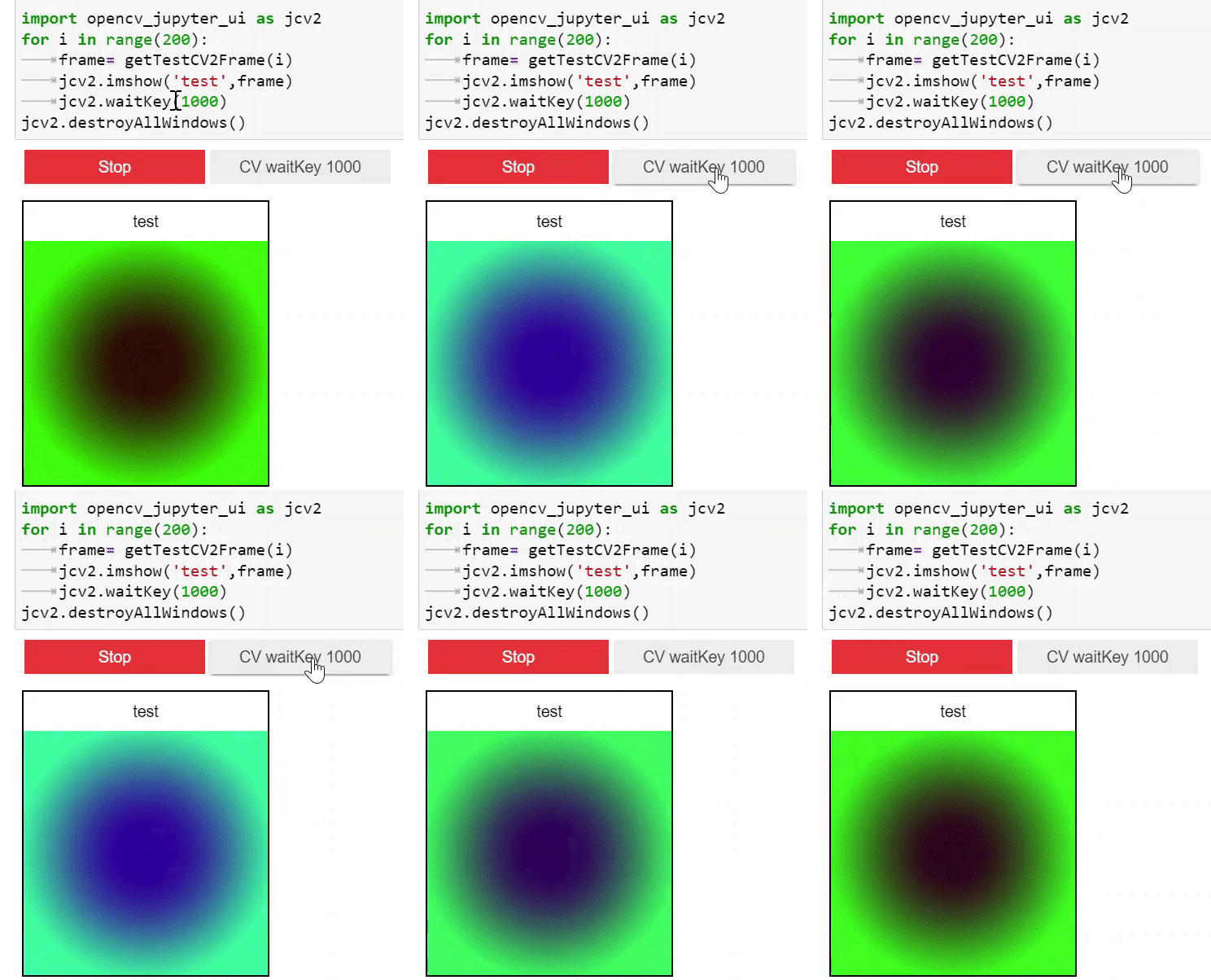
I have just developed a library that is exactly similar to cv2.imshow and it can be used in both Jupyter and colab. It can update the window. Therefore you can easily see the video inside it. It uses HTML canvas and is browser friendly :)

Installation:

pip install opencv_jupyter_ui

Usage:

This is the replacement of cv2.imshow for Jupiter. you need only to replace cv2.imshow with jcv2.imshow. It will work in Jupiter.

First:

please import the library

import opencv_jupyter_ui as jcv2

Then:

change cv2.imshow ->jcv2.imshow

More details exist on the Github Repository. Binder Demo gif

It also supports jcv2.waitKey(100) and jcv2.destroyAllWindows(). In case of the absence of Jupyter, it fallbacks to original cv2 functionality. In order to change the default keys you can use jcv2.setKeys(['a','b','esc']). Please follow the document for more information

Related