
I'm developing a C++ command-line application in Visual Studio and need to debug it with command-line arguments. At the moment I just run the generated EXE file with the arguments I need (like this program.exe -file.txt) , but this way I can't debug. Is there somewhere I can specify the arguments for debugging?
Debugging with command-line parameters in Visual Studio
Viewed 475500
12 Answers
Yes, it's in the Debugging section of the properties page of the project.
In Visual Studio since 2008: right-click the project, choose Properties, go to the Debugging section -- there is a box for "Command Arguments". (Tip: not solution, but project).
The Mozilla.org FAQ on debugging Mozilla on Windows is of interest here.
In short, the Visual Studio debugger can be invoked on a program from the command line, allowing one to specify the command line arguments when invoking a command line program, directly on the command line.
This looks like the following for Visual Studio 8 or 9 (Visual Studio 2005 or Visual Studio 2008, respectively)
devenv /debugexe 'program name' 'program arguments'
It is also possible to have an explorer action to start a program in the Visual Studio debugger.
Even if you do start the executable outside Visual Studio, you can still use the "Attach" command to connect Visual Studio to your already-running executable. This can be useful e.g. when your application is run as a plug-in within another application.
With VS 2015 and up, Use the Smart Command Line Arguments extension. This plug-in adds a window that allows you to turn arguments on and off:
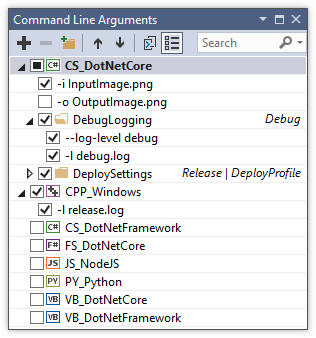
The extension additionally stores the arguments in a JSON file, allowing you to commit them to source control. In addition to ensuring you don't have to type in all the arguments every single time, this serves as a useful supplement to your documentation for other developers to discover the available options.
In Visual Studio 2017 with a .NET Core console application do the following:
Right click on the Project in the Solution window, select "Properties", Debug (on the left side), and enter the arguments into the field "Application Arguments".
Note that they should be space-separated.
In VS 2022 it is possible to debug any executable. Open a folder containing .exe file
Right-click on .exe file and click "Set as Startup item"
Again right-click on .exe file and click "Add Debug Configuration" or "Open Debug and Launch Settings" if configuration file is already created.
Add args to launch.vs.json, e.g.
{
  "version": "0.2.1",
  "defaults": {},
  "configurations": [
    {
      "type": "default",
      "project": "ffprobe.exe",
      "projectTarget": "",
      "name": "ffprobe.exe",
      "args": [ "C:\\Temp\\test-file" ]
    }
  ]
}
- Right-click on .exe file and click "Debug"
This may help some people who still have problems.
I use Visual Studio 2015 and I could only pass the arguments when I changed the definition of argv.
Instead of
int main(int argc, char **argv){
}
I had to use
int main(int argc, char *argv[]){
}
I do not know why it was necessary, but it works.
I found some old command line arguments stored in a MyStartUpProject.csproj.user file under my startup-project's source folder. Deleting this file didnt work, Visual Studio brought it back for me. I had to edit the arguments in the file.
The values in the file did not show up in VS, Project Properties, Debugging. Entering values there appended them to the values in the mysterious MyStartUpProject.csproj.user file.
For those using VS2022 and you don't have launchSchema.json, as someone mentioned above, there is a solution for inserting args using launchSettings.json.
enter the file and insert your args using "commandLineArgs": "argument here",
this worked for me.
Related