
Using stroke method, how to create gradient line with sharp end in flutter? I want to draw the line as below in flutter.

Using stroke method, how to create gradient line with sharp end in flutter? I want to draw the line as below in flutter.
Use CustomPainter to draw:
import 'package:flutter/material.dart';

void main() => runApp(Example());

class Example extends StatefulWidget {
  @override
  _ExampleState createState() => _ExampleState();
}

class _ExampleState extends State<Example> {
  @override
  void initState() {
    super.initState();
  }

  @override
  Widget build(BuildContext context) {
    return MaterialApp(
        home: Scaffold(
            body: Center(
      child: CustomPaint(
        size: Size(200, 5),
        painter: CurvePainter(),
      ),
    )));
  }

  @override
  void dispose() {
    super.dispose();
  }
}

class CurvePainter extends CustomPainter {
  @override
  void paint(Canvas canvas, Size size) {
    var paint = Paint();
    paint.color = Colors.black;
    paint.style = PaintingStyle.fill; // Change this to fill

    var path = Path();

    path.moveTo(0, 0);
    path.quadraticBezierTo(size.width / 2, size.height / 2, size.width, 0);
    path.quadraticBezierTo(size.width / 2, -size.height / 2, 0, 0);

    canvas.drawPath(path, paint);
  }

  @override
  bool shouldRepaint(CustomPainter oldDelegate) {
    return true;
  }
}
modified sleepingkit answer:
import 'package:flutter/material.dart';

class PointedLinePainter extends CustomPainter {
  final double width;

  PointedLinePainter(this.width);

  @override
  void paint(Canvas canvas, Size size) {
    var paint = Paint();
    paint.color = Colors.white;
    paint.style = PaintingStyle.fill;

    var path = Path();

    path.moveTo(0, 0);
    path.quadraticBezierTo(width / 3, 0.5, width, 0);
    path.quadraticBezierTo(width / 3, -0.5, 0, 0);

    canvas.drawPath(path, paint);
  }

  @override
  bool shouldRepaint(CustomPainter oldDelegate) {
    return true;
  }
}
somewhere in code:
Container(
      margin: EdgeInsets.symmetric(horizontal: 10.0),
      alignment: Alignment.centerLeft,
      width: MediaQuery.of(context).size.width,
      height: 2,
      child: CustomPaint(
        painter:
            PointedLinePainter(width - 2 * horizontalPointedLineMargin),
      ),
    )

Can't see your picture.You can use the CustomPaint widget to draw lines, define a class that extends CustomPainter, and use the canvas.drawLine() method.

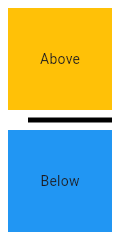
Divider class
A thin horizontal line, with padding on either side.
In the material design language, this represents a divider. Dividers can be used in lists, Drawers, and elsewhere to separate content.
To create a divider between ListTile items, consider using ListTile.divideTiles, which is optimized for this case.
The box's total height is controlled by height. The appropriate padding is automatically computed from the height.
[
import 'package:flutter/material.dart';
void main() => runApp(MyApp());
/// This Widget is the main application widget.
class MyApp extends StatelessWidget {
static const String _title = 'Flutter Code Sample';
@override
Widget build(BuildContext context) {
return MaterialApp(
title: _title,
home: Scaffold(
appBar: AppBar(title: const Text(_title)),
body: MyStatelessWidget(),
),
);
}
}
/// This is the stateless widget that the main application instantiates.
class MyStatelessWidget extends StatelessWidget {
MyStatelessWidget({Key key}) : super(key: key);
@override
Widget build(BuildContext context) {
return Center(
child: Column(
children: <Widget>\[
Expanded(
child: Container(
color: Colors.amber,
child: const Center(
child: Text('Above'),
),
),
),
const Divider(
color: Colors.black,
height: 20,
thickness: 5,
indent: 20,
endIndent: 0,
),
Expanded(
child: Container(
color: Colors.blue,
child: const Center(
child: Text('Below'),
),
),
),
\],
),
);
}
}]
Here info how to change style enter link description here