What is your most productive shortcut with Vim?

Viewed 918770

I've heard a lot about Vim, both pros and cons. It really seems you should be (as a developer) faster with Vim than with any other editor. I'm using Vim to do some basic stuff and I'm at best 10 times less productive with Vim.

The only two things you should care about when you talk about speed (you may not care enough about them, but you should) are:

  1. Using alternatively left and right hands is the fastest way to use the keyboard.
  2. Never touching the mouse is the second way to be as fast as possible. It takes ages for you to move your hand, grab the mouse, move it, and bring it back to the keyboard (and you often have to look at the keyboard to be sure you returned your hand properly to the right place)

Here are two examples demonstrating why I'm far less productive with Vim.

Copy/Cut & paste. I do it all the time. With all the contemporary editors you press Shift with the left hand, and you move the cursor with your right hand to select text. Then Ctrl+C copies, you move the cursor and Ctrl+V pastes.

With Vim it's horrible:

  • yy to copy one line (you almost never want the whole line!)
  • [number xx]yy to copy xx lines into the buffer. But you never know exactly if you've selected what you wanted. I often have to do [number xx]dd then u to undo!

Another example? Search & replace.

  • In PSPad: Ctrl+f then type what you want you search for, then press Enter.
  • In Vim: /, then type what you want to search for, then if there are some special characters put \ before each special character, then press Enter.

And everything with Vim is like that: it seems I don't know how to handle it the right way.

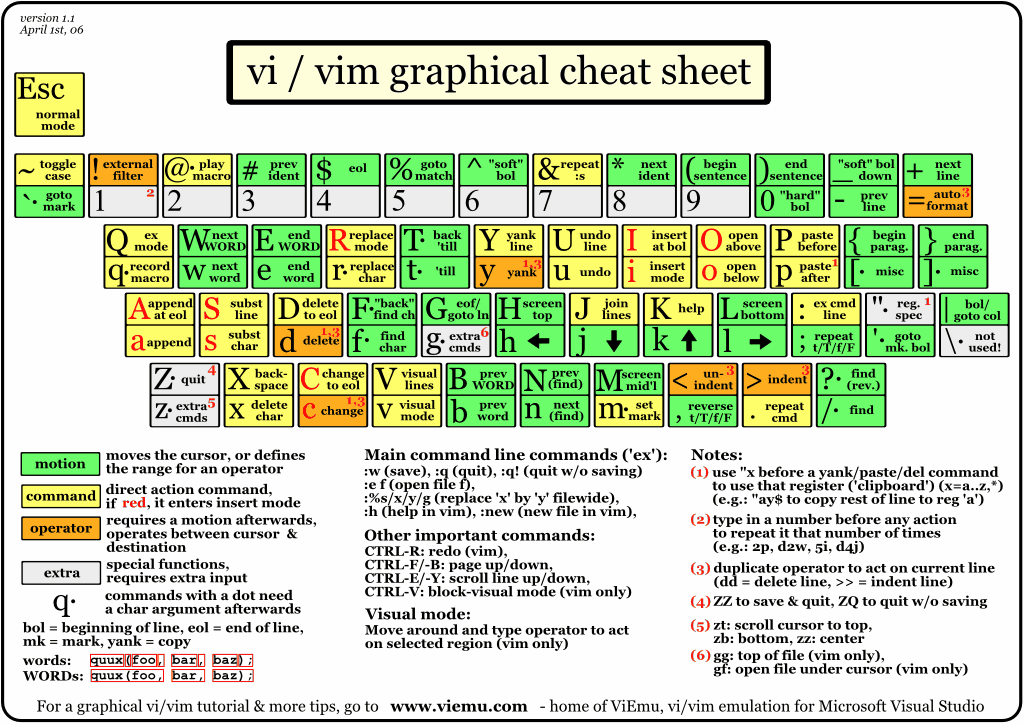
NB : I've already read the Vim cheat sheet :)

My question is:

What is the way you use Vim that makes you more productive than with a contemporary editor?

50 Answers

Your problem with Vim is that you don't grok vi.

You mention cutting with yy and complain that you almost never want to cut whole lines. In fact programmers, editing source code, very often want to work on whole lines, ranges of lines and blocks of code. However, yy is only one of many way to yank text into the anonymous copy buffer (or "register" as it's called in vi).

The "Zen" of vi is that you're speaking a language. The initial y is a verb. The statement yy is a synonym for y_. The y is doubled up to make it easier to type, since it is such a common operation.

This can also be expressed as dd P (delete the current line and paste a copy back into place; leaving a copy in the anonymous register as a side effect). The y and d "verbs" take any movement as their "subject." Thus yW is "yank from here (the cursor) to the end of the current/next (big) word" and y'a is "yank from here to the line containing the mark named 'a'."

If you only understand basic up, down, left, and right cursor movements then vi will be no more productive than a copy of "notepad" for you. (Okay, you'll still have syntax highlighting and the ability to handle files larger than a piddling ~45KB or so; but work with me here).

vi has 26 "marks" and 26 "registers." A mark is set to any cursor location using the m command. Each mark is designated by a single lower case letter. Thus ma sets the 'a' mark to the current location, and mz sets the 'z' mark. You can move to the line containing a mark using the ' (single quote) command. Thus 'a moves to the beginning of the line containing the 'a' mark. You can move to the precise location of any mark using the ` (backquote) command. Thus `z will move directly to the exact location of the 'z' mark.

Because these are "movements" they can also be used as subjects for other "statements."

So, one way to cut an arbitrary selection of text would be to drop a mark (I usually use 'a' as my "first" mark, 'z' as my next mark, 'b' as another, and 'e' as yet another (I don't recall ever having interactively used more than four marks in 15 years of using vi; one creates one's own conventions regarding how marks and registers are used by macros that don't disturb one's interactive context). Then we go to the other end of our desired text; we can start at either end, it doesn't matter. Then we can simply use d`a to cut or y`a to copy. Thus the whole process has a 5 keystrokes overhead (six if we started in "insert" mode and needed to Esc out command mode). Once we've cut or copied then pasting in a copy is a single keystroke: p.

I say that this is one way to cut or copy text. However, it is only one of many. Frequently we can more succinctly describe the range of text without moving our cursor around and dropping a mark. For example if I'm in a paragraph of text I can use { and } movements to the beginning or end of the paragraph respectively. So, to move a paragraph of text I cut it using { d} (3 keystrokes). (If I happen to already be on the first or last line of the paragraph I can then simply use d} or d{ respectively.

The notion of "paragraph" defaults to something which is usually intuitively reasonable. Thus it often works for code as well as prose.

Frequently we know some pattern (regular expression) that marks one end or the other of the text in which we're interested. Searching forwards or backwards are movements in vi. Thus they can also be used as "subjects" in our "statements." So I can use d/foo to cut from the current line to the next line containing the string "foo" and y?bar to copy from the current line to the most recent (previous) line containing "bar." If I don't want whole lines I can still use the search movements (as statements of their own), drop my mark(s) and use the `x commands as described previously.

In addition to "verbs" and "subjects" vi also has "objects" (in the grammatical sense of the term). So far I've only described the use of the anonymous register. However, I can use any of the 26 "named" registers by prefixing the "object" reference with " (the double quote modifier). Thus if I use "add I'm cutting the current line into the 'a' register and if I use "by/foo then I'm yanking a copy of the text from here to the next line containing "foo" into the 'b' register. To paste from a register I simply prefix the paste with the same modifier sequence: "ap pastes a copy of the 'a' register's contents into the text after the cursor and "bP pastes a copy from 'b' to before the current line.

This notion of "prefixes" also adds the analogs of grammatical "adjectives" and "adverbs' to our text manipulation "language." Most commands (verbs) and movement (verbs or objects, depending on context) can also take numeric prefixes. Thus 3J means "join the next three lines" and d5} means "delete from the current line through the end of the fifth paragraph down from here."

This is all intermediate level vi. None of it is Vim specific and there are far more advanced tricks in vi if you're ready to learn them. If you were to master just these intermediate concepts then you'd probably find that you rarely need to write any macros because the text manipulation language is sufficiently concise and expressive to do most things easily enough using the editor's "native" language.


A sampling of more advanced tricks:

There are a number of : commands, most notably the :% s/foo/bar/g global substitution technique. (That's not advanced but other : commands can be). The whole : set of commands was historically inherited by vi's previous incarnations as the ed (line editor) and later the ex (extended line editor) utilities. In fact vi is so named because it's the visual interface to ex.

: commands normally operate over lines of text. ed and ex were written in an era when terminal screens were uncommon and many terminals were "teletype" (TTY) devices. So it was common to work from printed copies of the text, using commands through an extremely terse interface (common connection speeds were 110 baud, or, roughly, 11 characters per second -- which is slower than a fast typist; lags were common on multi-user interactive sessions; additionally there was often some motivation to conserve paper).

So the syntax of most : commands includes an address or range of addresses (line number) followed by a command. Naturally one could use literal line numbers: :127,215 s/foo/bar to change the first occurrence of "foo" into "bar" on each line between 127 and 215. One could also use some abbreviations such as . or $ for current and last lines respectively. One could also use relative prefixes + and - to refer to offsets after or before the curent line, respectively. Thus: :.,$j meaning "from the current line to the last line, join them all into one line". :% is synonymous with :1,$ (all the lines).

The :... g and :... v commands bear some explanation as they are incredibly powerful. :... g is a prefix for "globally" applying a subsequent command to all lines which match a pattern (regular expression) while :... v applies such a command to all lines which do NOT match the given pattern ("v" from "conVerse"). As with other ex commands these can be prefixed by addressing/range references. Thus :.,+21g/foo/d means "delete any lines containing the string "foo" from the current one through the next 21 lines" while :.,$v/bar/d means "from here to the end of the file, delete any lines which DON'T contain the string "bar."

It's interesting that the common Unix command grep was actually inspired by this ex command (and is named after the way in which it was documented). The ex command :g/re/p (grep) was the way they documented how to "globally" "print" lines containing a "regular expression" (re). When ed and ex were used, the :p command was one of the first that anyone learned and often the first one used when editing any file. It was how you printed the current contents (usually just one page full at a time using :.,+25p or some such).

Note that :% g/.../d or (its reVerse/conVerse counterpart: :% v/.../d are the most common usage patterns. However there are couple of other ex commands which are worth remembering:

We can use m to move lines around, and j to join lines. For example if you have a list and you want to separate all the stuff matching (or conversely NOT matching some pattern) without deleting them, then you can use something like: :% g/foo/m$ ... and all the "foo" lines will have been moved to the end of the file. (Note the other tip about using the end of your file as a scratch space). This will have preserved the relative order of all the "foo" lines while having extracted them from the rest of the list. (This would be equivalent to doing something like: 1G!GGmap!Ggrep foo<ENTER>1G:1,'a g/foo'/d (copy the file to its own tail, filter the tail through grep, and delete all the stuff from the head).

To join lines usually I can find a pattern for all the lines which need to be joined to their predecessor (all the lines which start with "^ " rather than "^ * " in some bullet list, for example). For that case I'd use: :% g/^ /-1j (for every matching line, go up one line and join them). (BTW: for bullet lists trying to search for the bullet lines and join to the next doesn't work for a couple reasons ... it can join one bullet line to another, and it won't join any bullet line to all of its continuations; it'll only work pairwise on the matches).

Almost needless to mention you can use our old friend s (substitute) with the g and v (global/converse-global) commands. Usually you don't need to do so. However, consider some case where you want to perform a substitution only on lines matching some other pattern. Often you can use a complicated pattern with captures and use back references to preserve the portions of the lines that you DON'T want to change. However, it will often be easier to separate the match from the substitution: :% g/foo/s/bar/zzz/g -- for every line containing "foo" substitute all "bar" with "zzz." (Something like :% s/\(.*foo.*\)bar\(.*\)/\1zzz\2/g would only work for the cases those instances of "bar" which were PRECEDED by "foo" on the same line; it's ungainly enough already, and would have to be mangled further to catch all the cases where "bar" preceded "foo")

The point is that there are more than just p, s, and d lines in the ex command set.

The : addresses can also refer to marks. Thus you can use: :'a,'bg/foo/j to join any line containing the string foo to its subsequent line, if it lies between the lines between the 'a' and 'b' marks. (Yes, all of the preceding ex command examples can be limited to subsets of the file's lines by prefixing with these sorts of addressing expressions).

That's pretty obscure (I've only used something like that a few times in the last 15 years). However, I'll freely admit that I've often done things iteratively and interactively that could probably have been done more efficiently if I'd taken the time to think out the correct incantation.

Another very useful vi or ex command is :r to read in the contents of another file. Thus: :r foo inserts the contents of the file named "foo" at the current line.

More powerful is the :r! command. This reads the results of a command. It's the same as suspending the vi session, running a command, redirecting its output to a temporary file, resuming your vi session, and reading in the contents from the temp. file.

Even more powerful are the ! (bang) and :... ! (ex bang) commands. These also execute external commands and read the results into the current text. However, they also filter selections of our text through the command! This we can sort all the lines in our file using 1G!Gsort (G is the vi "goto" command; it defaults to going to the last line of the file, but can be prefixed by a line number, such as 1, the first line). This is equivalent to the ex variant :1,$!sort. Writers often use ! with the Unix fmt or fold utilities for reformating or "word wrapping" selections of text. A very common macro is {!}fmt (reformat the current paragraph). Programmers sometimes use it to run their code, or just portions of it, through indent or other code reformatting tools.

Using the :r! and ! commands means that any external utility or filter can be treated as an extension of our editor. I have occasionally used these with scripts that pulled data from a database, or with wget or lynx commands that pulled data off a website, or ssh commands that pulled data from remote systems.

Another useful ex command is :so (short for :source). This reads the contents of a file as a series of commands. When you start vi it normally, implicitly, performs a :source on ~/.exinitrc file (and Vim usually does this on ~/.vimrc, naturally enough). The use of this is that you can change your editor profile on the fly by simply sourcing in a new set of macros, abbreviations, and editor settings. If you're sneaky you can even use this as a trick for storing sequences of ex editing commands to apply to files on demand.

For example I have a seven line file (36 characters) which runs a file through wc, and inserts a C-style comment at the top of the file containing that word count data. I can apply that "macro" to a file by using a command like: vim +'so mymacro.ex' ./mytarget

(The + command line option to vi and Vim is normally used to start the editing session at a given line number. However it's a little known fact that one can follow the + by any valid ex command/expression, such as a "source" command as I've done here; for a simple example I have scripts which invoke: vi +'/foo/d|wq!' ~/.ssh/known_hosts to remove an entry from my SSH known hosts file non-interactively while I'm re-imaging a set of servers).

Usually it's far easier to write such "macros" using Perl, AWK, sed (which is, in fact, like grep a utility inspired by the ed command).

The @ command is probably the most obscure vi command. In occasionally teaching advanced systems administration courses for close to a decade I've met very few people who've ever used it. @ executes the contents of a register as if it were a vi or ex command.
Example: I often use: :r!locate ... to find some file on my system and read its name into my document. From there I delete any extraneous hits, leaving only the full path to the file I'm interested in. Rather than laboriously Tab-ing through each component of the path (or worse, if I happen to be stuck on a machine without Tab completion support in its copy of vi) I just use:

  1. 0i:r (to turn the current line into a valid :r command),
  2. "cdd (to delete the line into the "c" register) and
  3. @c execute that command.

That's only 10 keystrokes (and the expression "cdd @c is effectively a finger macro for me, so I can type it almost as quickly as any common six letter word).


A sobering thought

I've only scratched to surface of vi's power and none of what I've described here is even part of the "improvements" for which vim is named! All of what I've described here should work on any old copy of vi from 20 or 30 years ago.

There are people who have used considerably more of vi's power than I ever will.

You are talking about text selecting and copying, I think that you should give a look to the Vim Visual Mode.

In the visual mode, you are able to select text using Vim commands, then you can do whatever you want with the selection.

Consider the following common scenarios:

You need to select to the next matching parenthesis.

You could do:

  • v% if the cursor is on the starting/ending parenthesis
  • vib if the cursor is inside the parenthesis block

You want to select text between quotes:

  • vi" for double quotes
  • vi' for single quotes

You want to select a curly brace block (very common on C-style languages):

  • viB
  • vi{

You want to select the entire file:

  • ggVG

Visual block selection is another really useful feature, it allows you to select a rectangular area of text, you just have to press Ctrl-V to start it, and then select the text block you want and perform any type of operation such as yank, delete, paste, edit, etc. It's great to edit column oriented text.

. Repeat last text-changing command

I save a lot of time with this one.

Visual mode was mentioned previously, but block visual mode has saved me a lot of time when editing fixed size columns in text file. (accessed with Ctrl-V).

gi

Go to last edited location (very useful if you performed some searching and than want go back to edit)

^P and ^N

Complete previous (^P) or next (^N) text.

^O and ^I

Go to previous (^O - "O" for old) location or to the next (^I - "I" just near to "O"). When you perform searches, edit files etc., you can navigate through these "jumps" forward and back.

CTRL + A increments the number you are standing on.

All in Normal mode:

f<char> to move to the next instance of a particular character on the current line, and ; to repeat.

F<char> to move to the previous instance of a particular character on the current line and ; to repeat.

If used intelligently, the above two can make you killer-quick moving around in a line.

* on a word to search for the next instance.

# on a word to search for the previous instance.

Last week at work our project inherited a lot of Python code from another project. Unfortunately the code did not fit into our existing architecture - it was all done with global variables and functions, which would not work in a multi-threaded environment.

We had ~80 files that needed to be reworked to be object oriented - all the functions moved into classes, parameters changed, import statements added, etc. We had a list of about 20 types of fix that needed to be done to each file. I would estimate that doing it by hand one person could do maybe 2-4 per day.

So I did the first one by hand and then wrote a vim script to automate the changes. Most of it was a list of vim commands e.g.

" delete an un-needed function "
g/someFunction(/ d

" add wibble parameter to function foo "
%s/foo(/foo( wibble,/

" convert all function calls bar(thing) into method calls thing.bar() "
g/bar(/ normal nmaf(ldi(`aPa.

The last one deserves a bit of explanation:

g/bar(/  executes the following command on every line that contains "bar("
normal   execute the following text as if it was typed in in normal mode
n        goes to the next match of "bar(" (since the :g command leaves the cursor position at the start of the line)
ma       saves the cursor position in mark a
f(       moves forward to the next opening bracket
l        moves right one character, so the cursor is now inside the brackets
di(      delete all the text inside the brackets
`a       go back to the position saved as mark a (i.e. the first character of "bar")
P        paste the deleted text before the current cursor position
a.       go into insert mode and add a "." 

For a couple of more complex transformations such as generating all the import statements I embedded some python into the vim script.

After a few hours of working on it I had a script that will do at least 95% of the conversion. I just open a file in vim then run :source fixit.vim and the file is transformed in a blink of the eye.

We still have the work of changing the remaining 5% that was not worth automating and of testing the results, but by spending a day writing this script I estimate we have saved weeks of work.

Of course it would have been possible to automate this with a scripting language like Python or Ruby, but it would have taken far longer to write and would be less flexible - the last example would have been difficult since regex alone would not be able to handle nested brackets, e.g. to convert bar(foo(xxx)) to foo(xxx).bar(). Vim was perfect for the task.

Use the builtin file explorer! The command is :Explore and it allows you to navigate through your source code very very fast. I have these mapping in my .vimrc:

map <silent> <F8>   :Explore<CR>
map <silent> <S-F8> :sp +Explore<CR>

The explorer allows you to make file modifications, too. I'll post some of my favorite keys, pressing <F1> will give you the full list:

  • -: The most useful: Change to upper directory (cd ..)
  • mf: Mark a file
  • D: Delete marked files or the file the cursor is on, if nothing ismarked.
  • R: Rename the file the cursor is on.
  • d: Create a new directory in the current directory
  • %: Create a new file in the current directory

Bulk text manipulations!

Either through macros:

  • Start with recording: qq
  • Do stuff
  • Stop recording: q
  • Repeat: @q (the first time), @@ after that.
  • Repeat 20 times: 20@@

Or through regular expressions:

  • Replace stuff: :%s/[fo]+/bar/g

(But be warned: if you do the latter, you'll have 2 problems :).)

I recently discovered q:. It opens the "command window" and shows your most recent ex-mode (command-mode) commands. You can move as usual within the window, and pressing <CR> executes the command. You can edit, etc. too. Priceless when you're messing around with some complex command or regex and you don't want to retype the whole thing, or if the complex thing you want to do was 3 commands back. It's almost like bash's set -o vi, but for vim itself (heh!).

See :help q: for more interesting bits for going back and forth.

I just discovered Vim's omnicompletion the other day, and while I'll admit I'm a bit hazy on what does which, I've had surprisingly good results just mashing either Ctrl + x Ctrl + u or Ctrl + n/Ctrl +p in insert mode. It's not quite IntelliSense, but I'm still learning it.

Try it out! :help ins-completion

These are not shortcuts, but they are related:

  1. Make capslock an additional ESC (or Ctrl)
  2. map leader to "," (comma), with this command: let mapleader=","

They boost my productivity.

<Ctrl> + W, V to split the screen vertically
<Ctrl> + W, W to shift between the windows

!python % [args] to run the script I am editing in this window

ZF in visual mode to fold arbitrary lines

What is the way you use Vim that makes you more productive than with a contemporary editor?

Being able to execute complex, repetitive edits with very few keystrokes (often using macros). Take a look at VimGolf to witness the power of Vim!

After over ten years of almost daily usage, it's hard to imagine using any other editor.

Automatic indentation:

gg (go to start of document)
= (indent time!)
shift-g (go to end of document)

You'll need 'filetype plugin indent on' in your .vimrc file, and probably appropriate 'shiftwidth' and 'expandtab' settings.

Multiple buffers, and in particular fast jumping between them to compare two files with :bp and :bn (properly remapped to a single Shift + p or Shift + n)

vimdiff mode (splits in two vertical buffers, with colors to show the differences)

Area-copy with Ctrl + v

And finally, tab completion of identifiers (search for "mosh_tab_or_complete"). That's a life changer.

A third criteria for making editing faster is the number of keystrokes required. I would say this is more important than your other 2. In vim, almost all operations require fewer keystrokes than any other editor I'm familiar with.

You mention that you are having trouble with cut & paste, but it sounds like you need more experience with general motion commands in vim. yank 3 words: y3w yank from the cursor to the next semi-colon: yf; yank to the next occurrence of your most recent search: yn All of those are much faster than trying to navigate with a mouse while holding down a modifier key. Also, as seen in some of the examples in CMS's response, vim's motion commands are highly optimized for efficient navigation in C and C++ source code.

As to the question 'how do I use vim that makes me more productive?', I hope the answer is: "efficiently".

After mapping the below to a simple key combo, the following are very useful for me:

Jump into a file while over its path

gf

get full path name of existing file

:r!echo %:p

get directory of existing file

:r!echo %:p:h

run code:

:!ruby %:p

ruby abbreviations:

ab if_do if end<esc>bi<cr><esc>xhxO
ab if_else if end<esc>bi<cr><esc>xhxO else<esc>bhxA<cr> <esc>k$O
ab meth def method<cr>end<esc>k<esc>:s/method/
ab klas class KlassName<cr>end<esc>k<esc>:s/KlassName/
ab mod module ModName<cr>end<esc>k<esc>:s/ModName/

run current program:

   map ,rby :w!<cr>:!ruby %:p<cr>

check syntax of current program:

   map ,c :w!<cr>:!ruby -c %:p<cr>

run all specs for current spec program:

   map ,s :w!<cr>:!rspec %:p<cr>

crack it open irb:

   map ,i :w!<cr>:!irb<cr>

rspec abreviations:

   ab shared_examples shared_examples_for "behavior here" do<cr>end
   ab shared_behavior describe "description here" do<cr>  before :each do<cr>end<cr>it_should_behave_like "behavior here"<cr><bs>end<cr>
   ab describe_do describe "description here" do<cr>end
   ab context_do describe "description here" do<cr>end
   ab it_do it "description here" do<cr>end
   ab before_each before :each do<cr>end<cr>

rails abbreviations:

user authentication:

     ab userc <esc>:r $VIMRUNTIME/Templates/Ruby/c-users.rb<cr>
     ab userv <esc>:r $VIMRUNTIME/Templates/Ruby/v-users.erb<cr>
     ab userm <esc>:r $VIMRUNTIME/Templates/Ruby/m-users.rb<cr>

open visually selected url in firefox:

"function
   function open_url_in_firefox:(copy_text)
     let g:open_url_in_firefox="silent !open -a \"firefox\" \"".a:copy_text."\""
     exe g:open_url_in_firefox
   endfunction

"abbreviations
   map ,d :call open_url_in_firefox:(expand("%:p"))<cr>
   map go y:call open_url_in_firefox:(@0)<cr> 

rspec: run spec containing current line:

"function
   function run_single_rspec_test:(the_test)
     let g:rake_spec="!rspec ".a:the_test.":".line(".")
     exe g:rake_spec
   endfunction

"abbreviations
   map ,s :call run_single_rspec_test:(expand("%:p"))<cr>

rspec-rails: run spec containing current line:

"function
   function run_single_rails_rspec_test:(the_test)
     let g:rake_spec="!rake spec SPEC=\"".a:the_test.":".line(".")."\""
     exe g:rake_spec
   endfunction

"abbreviations
   map ,r :call run_single_rails_rspec_test:(expand("%:p"))<cr>

rspec-rails: run spec containing current line with debugging:

"function
   function run_spec_containing_current_line_with_debugging:(the_test)
     let g:rake_spec="!rake spec SPEC=\"".a:the_test.":".line(".")." -d\""
     exe g:rake_spec
   endfunction

"abbreviations
   map ,p :call run_spec_containing_current_line_with_debugging:(expand("%:p")) <cr>

html

"abbreviations

  "ab htm <html><cr><tab><head><cr></head><cr><body><cr></body><cr><bs><bs></html>
   ab template_html <script type = 'text/template' id = 'templateIdHere'></script>
   ab script_i <script src=''></script>
   ab script_m <script><cr></script>
   ab Tpage <esc>:r ~/.vim/templates/pageContainer.html<cr>
   ab Ttable <esc>:r ~/.vim/templates/listTable.html<cr>

"function to render common html template

   function html:() 
     call feedkeys( "i", 't' )
     call feedkeys("<html>\<cr>  <head>\<cr></head>\<cr><body>\<cr> ", 't')
     call feedkeys( "\<esc>", 't' )
     call feedkeys( "i", 't' )
     call include_js:()
     call feedkeys("\<bs>\<bs></body>\<cr> \<esc>hxhxi</html>", 't')
   endfunction

javascript

"jasmine.js
  "abbreviations
   ab describe_js describe('description here', function(){<cr>});
   ab context_js context('context here', function(){<cr>});
   ab it_js it('expectation here', function(){<cr>});
   ab expect_js expect().toEqual();
   ab before_js beforeEach(function(){<cr>});
   ab after_js afterEach(function(){<cr>});

"function abbreviations

   ab fun1 function(){}<esc>i<cr><esc>ko
   ab fun2 x=function(){};<esc>hi<cr>
   ab fun3 var x=function(){<cr>};

"method for rendering inclusion of common js files

   function include_js:()
     let includes_0  = "  <link   type = 'text\/css' rel = 'stylesheet' href = '\/Users\/johnjimenez\/common\/stylesheets\/jasmine-1.1.0\/jasmine.css'\/>"
     let includes_1  = "  <link   type = 'text\/css' rel = 'stylesheet' href = '\/Users\/johnjimenez\/common\/stylesheets\/screen.css'\/>"
     let includes_2  = "<script type = 'text\/javascript' src = '\/Users\/johnjimenez\/common\/javascripts\/jquery-1.7.2\/jquery-1.7.2.js'><\/script>"
     let includes_3  = "<script type = 'text\/javascript' src = '\/Users\/johnjimenez\/common\/javascripts\/underscore\/underscore.js'><\/script>"
     let includes_4  = "<script type = 'text\/javascript' src = '\/Users\/johnjimenez\/common\/javascripts\/backbone-0.9.2\/backbone.js'><\/script>"
     let includes_5  = "<script type = 'text\/javascript' src = '\/Users\/johnjimenez\/common\/javascripts\/jasmine-1.1.0\/jasmine.js'><\/script>"
     let includes_6  = "<script type = 'text\/javascript' src = '\/Users\/johnjimenez\/common\/javascripts\/jasmine-1.1.0\/jasmine-html.js'><\/script>"
     let includes_7  = "<script>"
     let includes_8  = "  describe('default page', function(){ "
     let includes_9  = "it('should have an html tag', function(){ "
     let includes_10 = "  expect( $( 'head' ).html() ).not.toMatch(\/^[\\s\\t\\n]*$\/);"
     let includes_11  = "});"
     let includes_12 = "});"
     let includes_13 = "$(function(){"
     let includes_14 = "jasmine.getEnv().addReporter( new jasmine.TrivialReporter() );"
     let includes_15 = "jasmine.getEnv().execute();"
     let includes_16 = "});"
     let includes_17 = "\<bs>\<bs><\/script>"

     let j = 0

     while j < 18
       let entry = 'includes_' . j
       call feedkeys( {entry}, 't' )
       call feedkeys( "\<cr>", 't' )
       let j = j + 1
     endwhile

   endfunction

"jquery

  "abbreviations

     ab docr $(document).ready(function(){});
     ab jqfun $(<cr>function(){<cr>}<cr>);

Inserting text to some bit in code:

ctrl + v, (selecting text on multiple lines), I, (type something I want), ESC

Recording a macro to edit text and running it N times:

q, a (or some other letter), (do the things I want to record), q, ESC,
(type N, as in the number of times I want to run the macro), @, a

Ignoring the question for a moment (my answer is below), a couple of things that might help with your problems with vim:

:map <C-F> /\V

This will make Ctrl-F start a search with the first characters of the search being \V, which turns off all the 'magic', so you don't have to escape anything (just like PsPad).

" CTRL-X and SHIFT-Del are Cut
vnoremap <C-X> "+x
vnoremap <S-Del> "+x

" CTRL-C and CTRL-Insert are Copy
vnoremap <C-C> "+y
vnoremap <C-Insert> "+y

" CTRL-V and SHIFT-Insert are Paste
map <C-V>       "+gP
map <S-Insert>      "+gP

cmap <C-V>      <C-R>+
cmap <S-Insert>     <C-R>+

(taken directly out of mswin.vim from the Vim distribution). This will give you Ctrl-C, Ctrl-V etc for copying and pasting.

Personally, I find the copying and pasting much better with the standard Vim. In Vim I can have the cursor on a line, type yy to copy it, 10p to paste 10 copies of it. With the Align plugin, I can then use Ctrl-V (assuming the windows mappings above aren't used) to visual-block select a column of numbers that has been created; :II then auto-increments that column of numbers. Similarly, with YankRing, I can copy 10 (or more) lines one after another and then paste them back out one after another.

As for the way that Vim makes me more productive, I would say that the tags file is the one thing I couldn't do without anymore. When the cursor is over a tag, I can press Ctrl-] to go to the function (and Ctrl-T to return, as many levels as I like) or ,p to open the function or macro definition (or whatever) in the preview window (which can then be quickly closed with :pcl) or [i to just show a macro definition on the status bar. For navigating complex source code, these tools are invaluable.

The preview window one does rely on a mapping in .vimrc, however:

:map ,p :ptag <C-R><C-W><CR>

The tags file also allows the use of a couple of (my) plugins that give syntax highlighting that shows errors much more clearly (by highlighting recognised tags and not highlighting unrecognised ones) and tag signatures when you move the mouse over a keyword.

For Copy/Cut and Paste specifically, using visual mode makes it much easier to adapt from other editors. So the way I normally cut and paste is:

  • Esc - exit Insert mode (skip if you are already in Normal mode)
  • v - turn on visual mode
  • move about the file to select the text you want - visual mode will show you what characters are selected. For a few words w, e and b are useful (move to start of next word, end of next word and start of this/previous word respectively).
  • d - cut the text (use y if you want to copy the text)
  • move about to where you want the text to go
  • p - paste (this pastes after the current character, P pastes before the current character.

Also useful is using V to go into Visual mode (line) which selects whole lines automatically, where ever the cursor is on the line.

http://www.viemu.com/a-why-vi-vim.html is a good advocacy article. It explains the power of using the . command to repeat the last edit.

Copy/Cut & paste. I do it all the time. With all the classical editors you press Shift with the left hand, and you move the cursor with your right hand to select text. Then Ctrl+C copies, you move the cursor and Ctrl+V pastes.

With Vim it's horrible:

* yy to copy one line (you almost never want the whole line!)
* [number xx]yy to copy xx lines into the buffer. But you never know

exactly if you've selected what you wanted. I often have to do [number xx]dd then u to undo!

I'm sure the other answers have explained better, but You're Doing It Wrong. I often use visual mode to select text to yank or delete, which is similar to your shift + select example, but Vim has a clear advantage here because your hands never leave home row to do it. yy is a great command but I often do Vy instead if I want to yank a whole line.

Actually I was always losing my buffers, so the way I usually copy a range of lines is to just write it to a temp file, and then read it in at the appropriate spot.

e.g.

ka (set the mark)

'a,. w! t (copy everything form the mark into the file t)

.. move your cursor around ..

:.r t (read in t into the current spot).

This probably involves fewer keystrokes than using the buffer, is easier to keep track of, and you can have long lived paste files around. I usually use 1 letter names for the files, for speed.

The key reason why this is fast is that to move your cursor around you just use the search function "/", and "n" if you run into another occurrence of the pattern before you get to where you want to go.

Related